Appointment waiting list: get alerted when a slot frees up
How the appointment waiting list works in Axon: customers sign up when no time is free, get an email if a slot opens, and you see them in the panel.

When a day is full, most customers simply leave. With an appointment waiting list, they can sign up and get a message if someone cancels. A last-minute cancellation stops being a lost hour. This guide explains how it works in Axon, who gets alerted and what the business sees.
What the customer sees
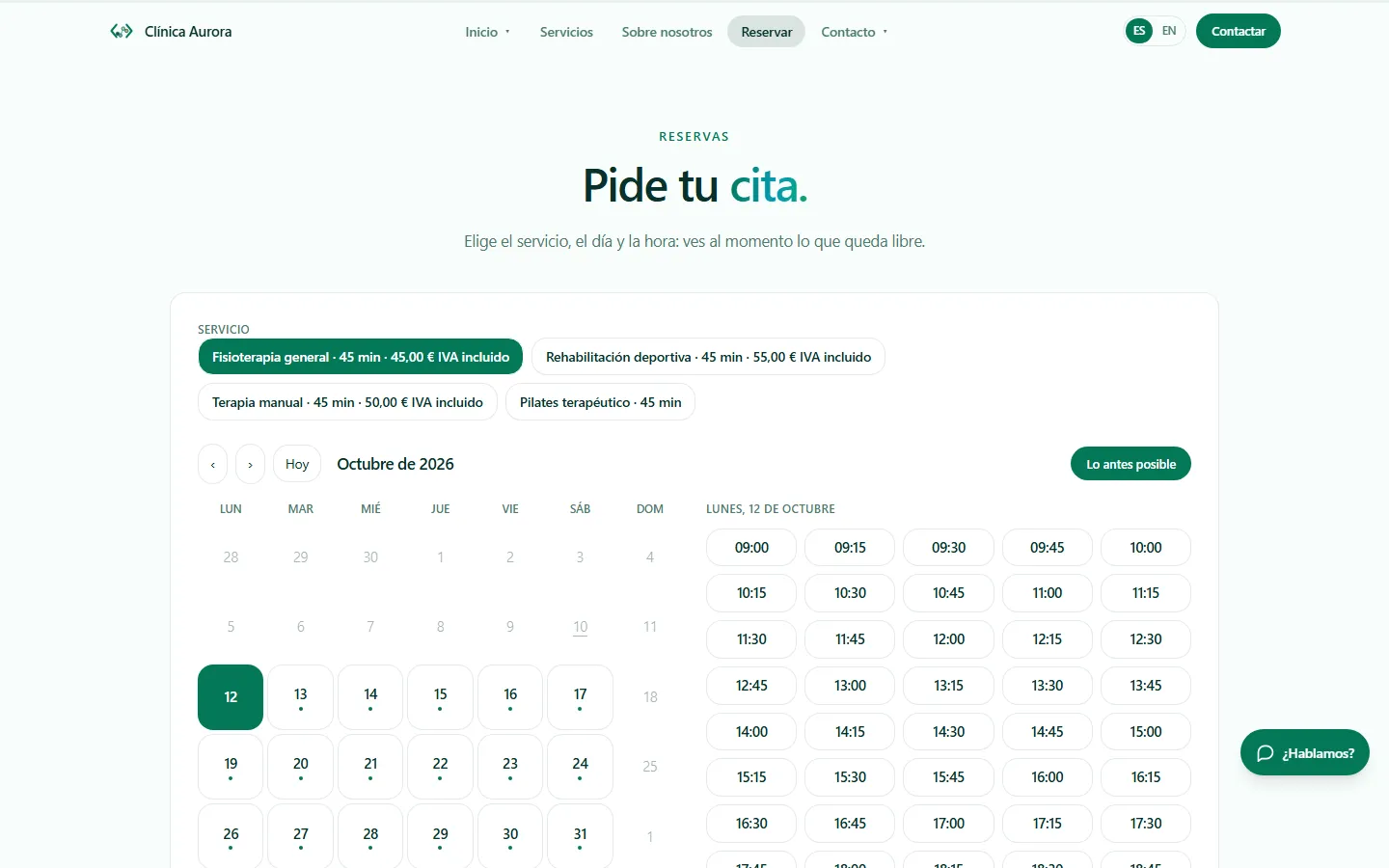
When they pick a day with no free time left, the website calendar offers "Let me know if a time frees up". The customer leaves their email and is signed up for that service and that day.
Each email can only sign up once per service and day, and the form is limited to 10 sign-ups an hour from the same connection, so nobody can flood it. No account is needed.
When people are told
A slot frees up when an appointment on that day gives up its place. That happens when:
- The business cancels or declines the appointment from the panel.
- The customer cancels it from their appointment page.
- It is cancelled through the assistant on the website or WhatsApp.
- The appointment is deleted.
- It is moved to another day.
At that moment, everyone signed up for that service, or for any service, gets an email. It carries a link to the website calendar already set to that day and service, so they can book in two steps.
Each person is told only once per freed slot. And there is a cap of 50 alerts for each slot freed, so the email sending is not overloaded.
Who gets the slot
The alert goes to everyone signed up at the same time, and whoever gets there first books it. By default Axon does not hold the slot for anyone: it goes back to the public calendar like any other, and the first booking that comes in takes it. It is the simplest way to make sure the slot is not wasted, though someone slow to open the email may find it already taken.
What the team sees in the panel
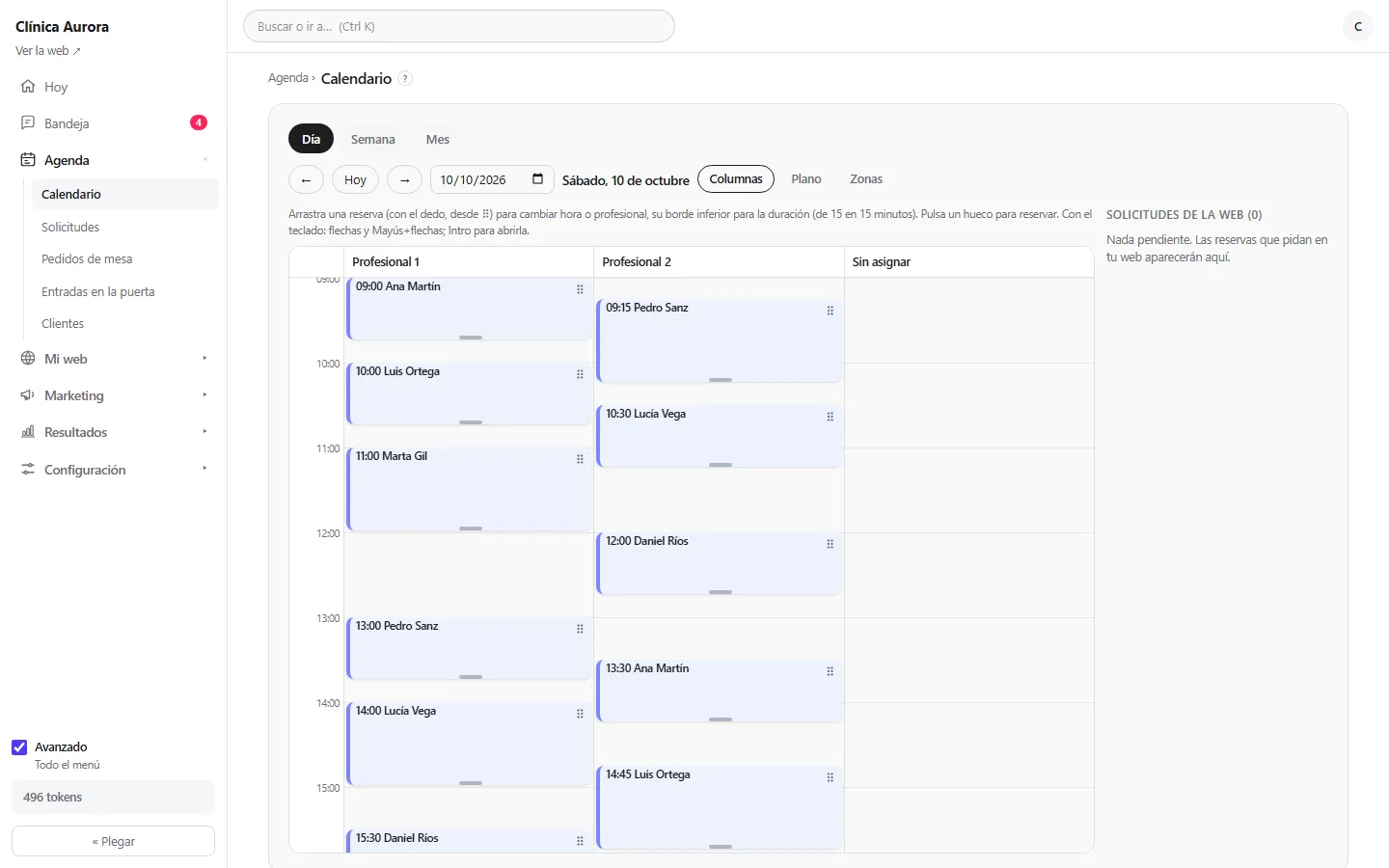
The waiting list is its own page, Agenda → Waiting list, with the people waiting from today onwards. Under the calendar there is a "Waiting list (N)" link with the number of people. From the page you can:
- Book them in. It opens "New appointment" with their name, email, day and service already filled in, and you just choose the time.
- Remove. It takes them off the list.
This is useful for filling by hand a slot you have just freed by phone, or for calling whoever has been waiting longest.

Automatic clean-up
A customer's sign-up costs the business nothing and holds no time: it is just a note with their email, the service and the day. So several people can wait for the same day without getting in each other's way.
A sign-up does not stay forever. It is deleted the day after the date it was for, in the daily clean-up task. So the list only holds what can still be useful.
When it makes sense
The waiting list matters most when your diary fills up regularly: hair salons and barbers on Saturdays, busy practices, classes with limited places, restaurants with a set number of tables. If you almost never fill a day, the section stays empty and does no harm.
It combines well with two things:
- Reminders. Confirming appointments ahead of time means slots free up earlier, not on the day itself.
- Cancellation rules. If you require a minimum notice to cancel, cancellations arrive with enough time for someone else to take them.
What it does not do
It is worth being clear about what is not there. The list does not book for you, does not take payment and does not guarantee anyone takes the slot. If a service has a deposit, whoever wants the slot goes through the deposit payment like any other customer. And alerts go out by email, from the business's own configured mailbox.
How to switch it on
The waiting list is part of the calendar and appears by itself when a day has no times left. There is nothing to set up by hand. If you do not have a website with a calendar yet, Axon gives you one ready-made. See the plans under Pricing or ask for a demo to see it with your own services.